Auto-Rules and Schedule: auto-stop and dayparting
Once a funnel is live and clicks accumulate, watching every flow by hand does not scale. In an ATracker campaign two tools cover different jobs: Auto-Rules react to metrics (CR, ROI, cost, zero conversions); Schedule defines show windows and hourly dayparting. They do not replace Reports — rules use aggregates over a time window, not sub_id drilldowns.
When to enable. Auto-Rules — after warm-up (often from ~100 clicks per rule; see Min clicks). Schedule / dayparting — when the offer, moderation, or ad platform requires “run only daytime” or specific hours. Do not enable both on day one: on tiny volume CR and ROI swing and rules cause false pauses.
Prerequisites
- The campaign already accepts traffic: flow with an offer, cost set or Cost Import connected — otherwise ROI/cost rules are meaningless.
- Fallback offer or Monitoring on the flow — if a rule pauses a path, visitors need somewhere to go.
- For dayparting you know the target timezone (ad account, offer, moderation) — the UI sets timezone explicitly.
How to open
- Sidebar → Campaigns → open a campaign (Edit).
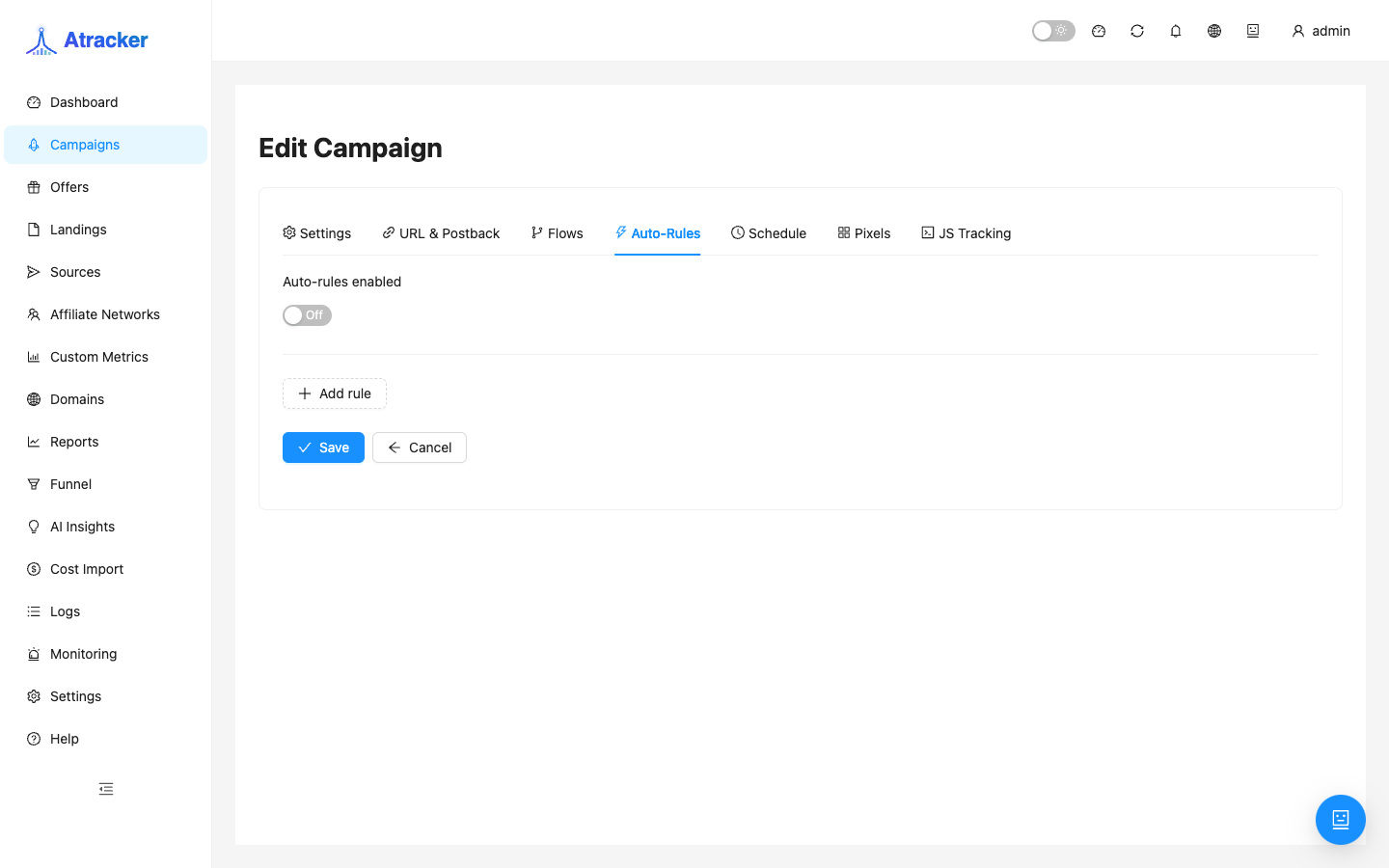
- Auto-Rules tab — metric rules.
- Schedule tab — time windows and dayparting grid.
Scenario 1 — Auto-Rules: stop bleed without ROI
Goal. A path spends actively while CR drops below 1% with enough volume — pause the flow and get an alert without watching Reports all night.
- On Auto-Rules, turn on Auto-rules enabled.
- Click Add rule. Set:
- Entity —
flow(one path),offer, orcampaign(broader). - Condition — e.g.
CR <,ROI <,Cost >,Clicks >,Conversions = 0. - Threshold — for CR/ROI/cost/clicks (not for zero conversions).
- Window hours — metric lookback (often 24).
- Min clicks — minimum clicks before firing (default 100; do not use 10 on tests).
- Action —
pause,alert, oralert_and_pause.
- Entity —
- Save. On a new funnel start with
alert; after 1–2 stable days move topause/alert_and_pause.
Scenario 2 — Schedule: dayparting for moderation or offer windows
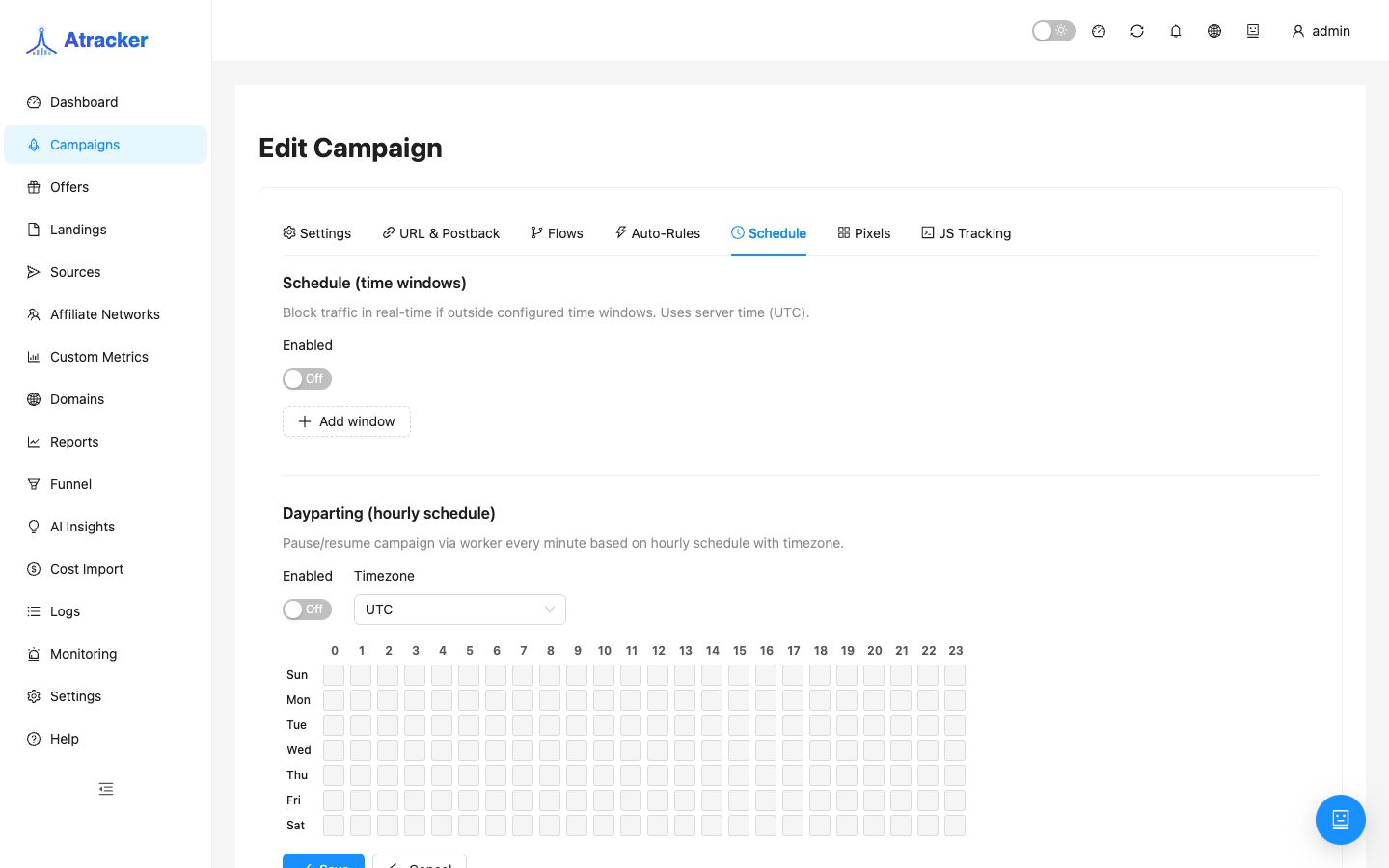
The Schedule tab has two blocks — do not mix them up.
Schedule (time windows). Blocks traffic in real time outside configured windows. Server time is UTC. Add From/To and weekdays (Add window). Use when you need “no clicks at night” without toggling campaign status by hand.
Dayparting (hourly schedule). A worker pauses/resumes the campaign every minute from the hour grid. Pick timezone (e.g. America/New_York), enable Enabled, mark active hours (click cells; click day name for the full day). Status may become paused_dayparting — you cannot toggle Active/Paused until the allowed window returns.
After a rule fires — where to look
- Campaigns — path/campaign status; bulk Pause / Resume when needed.
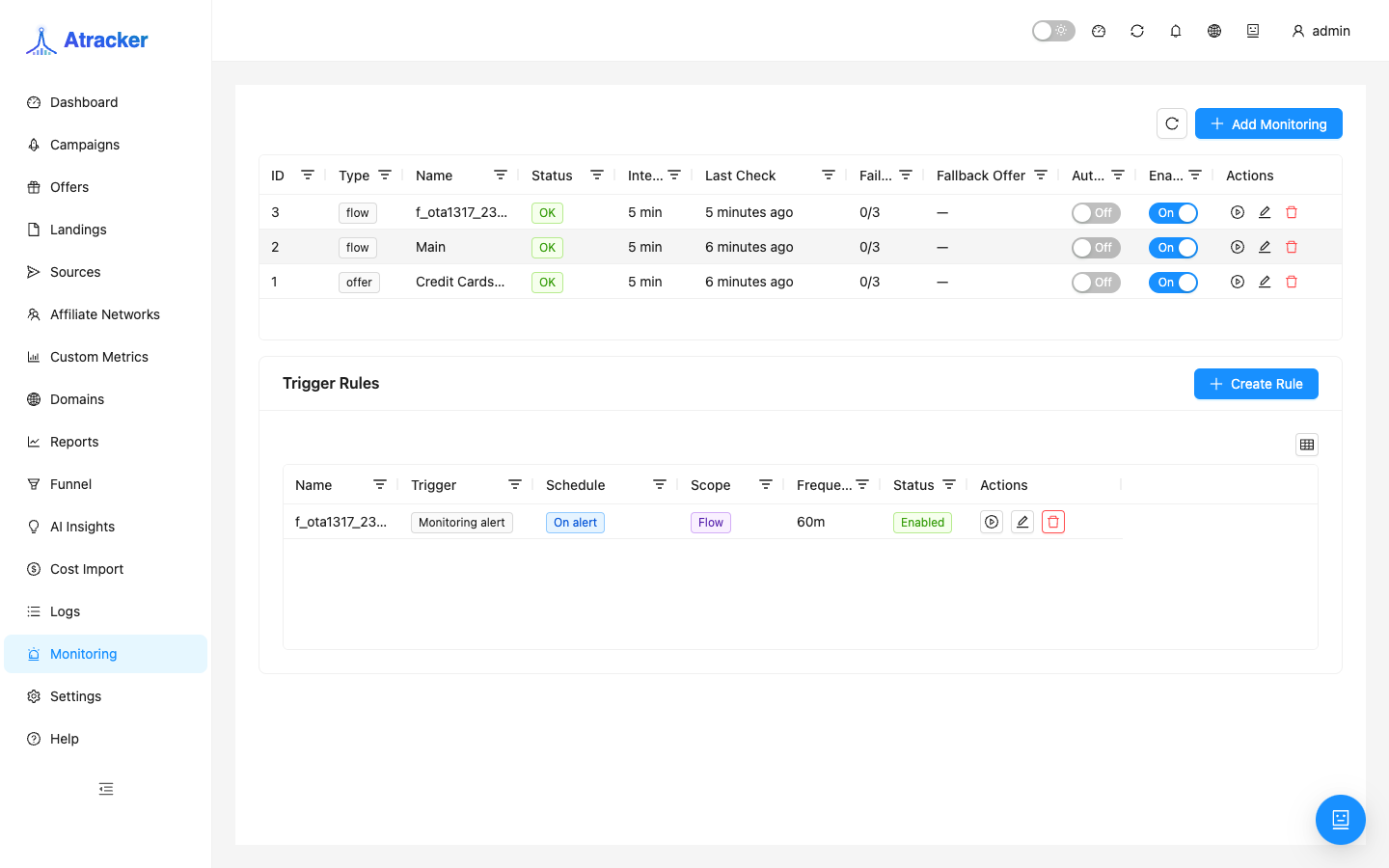
- Monitoring (
/monitoring) — is the offer down; if auto-switch ran, confirm fallback returns 200. - Flows — if a path is paused, ensure other paths carry traffic or fallback is enabled.
- Reports — confirm the metric in the rule window was actually bad (not a one-off Cost Import spike).
Typical scenarios
- Night stop for FB Tier-1. Dayparting in target timezone, active hours 08:00–23:00.
- Zero conversions for 24 h with 200+ clicks. Rule
Conversions = 0, min clicks 150, actionalert→ check postback, thenpause. - ROI < −30% over 12 h. Entity
flow, window 12, actionalert_and_pause— only if campaign cost or Cost Import is current.
Common mistakes
- Auto-Rules during warm-up at 20–30 clicks — false “dead funnel” pause.
- Dayparting in UTC while ads run in America/New_York — traffic cut at the wrong hours.
- Rule on
campaignwhen one path is bad — unnecessary downtime for the whole funnel. - No flow fallback — after pause clicks may count but visitors have nowhere to go.