Logs
Logs (/logs) is the tracker event journal for debugging: clicks, conversions, inbound/outbound postbacks, S2S, and CAPI delivery. When a report does not add up or a conversion never arrived, start here: find a Click ID and follow the chain to the postback.
Purpose
Reports and Dashboard show aggregates. Logs shows single events. Without logs you cannot tell postback never arrived from arrived with wrong status or click existed but was Suspicious. Use Logs when launching a campaign, changing a postback template, disputing with a network, or verifying CAPI/S2S.
Prerequisites
- Permission for the Logs page.
- Account timezone awareness: Logs date filters follow it.
- For CAPI/S2S — integrations already configured on the campaign/source.
How to open
- Sidebar → Logs (
/logs). - Tabs via UI or URL
/logs?tab=clicks(alsoactiveTab). Values:clicks,conversions,postbacks,s2s,capi. - From a campaign: View Clicks / View Conversions — deep link with campaign filter.
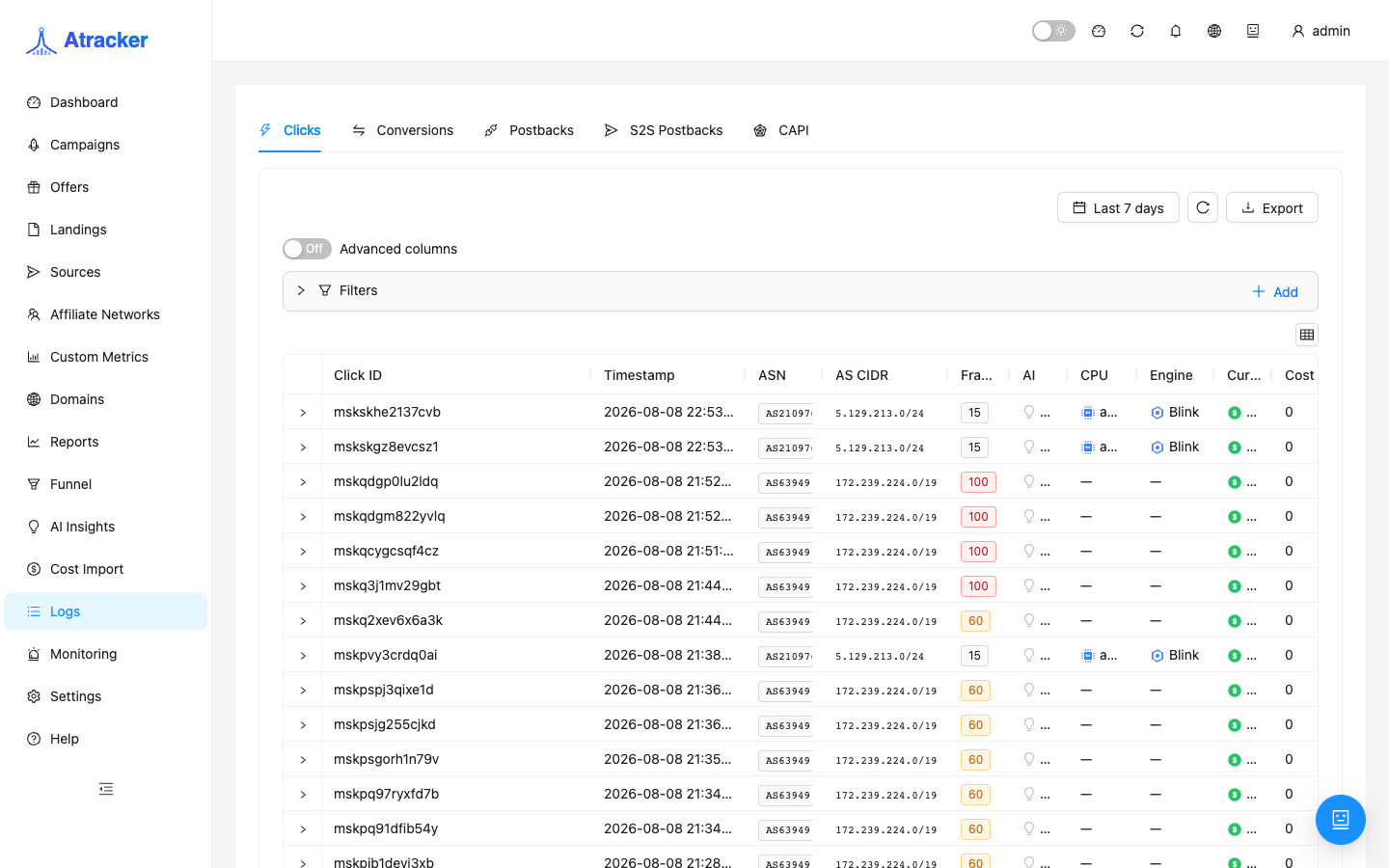
Clicks tab workflow
- Set period and optional campaign/offer filters. Period follows account timezone (Settings → General).
- Find a row by time, IP, sub_id, or Click ID. For network disputes start from the Click ID in their ticket/cabinet.
- Open detail: campaign/offer/landing, geo, device, User-Agent, sub_id 1–30, Click Source (
redirectorjs). - If you suspect fraud, enable Suspicious; detail shows fraud score and triggered signals.
- Copy Click ID to find the related conversion and postback on other tabs.
Click Source shows the hit channel: redirect vs js tracking. If a test click is missing, confirm you used the same method and the same period/campaign.
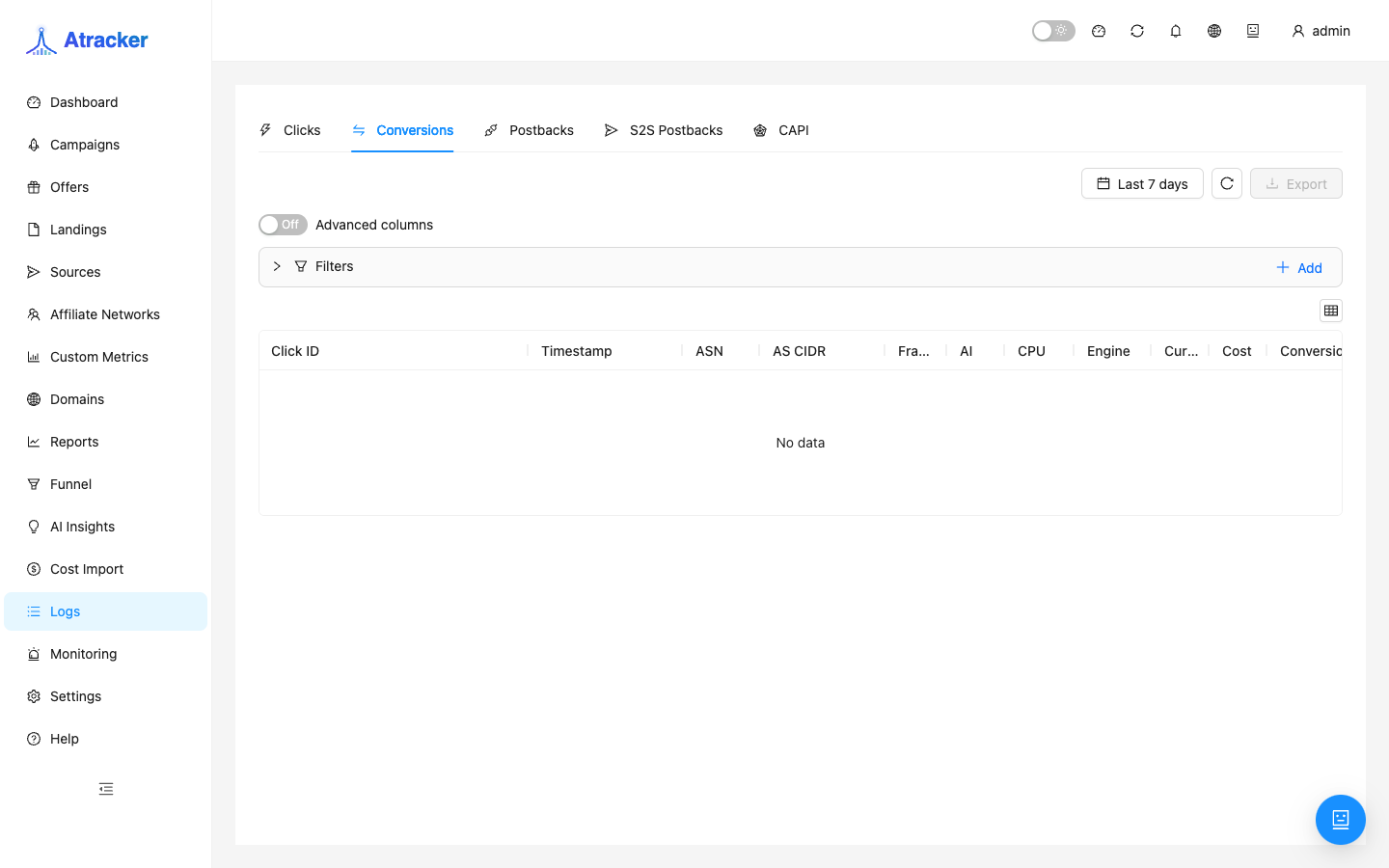
Conversions tab
Each row links to the originating click. Status, Payout, Revenue, and Goal explain what was recorded. Click without conversion — check Postbacks and the network template. Conversion without Reports — period/timezone or report filters. For payout disputes keep timestamp, Click ID, status, and payout.
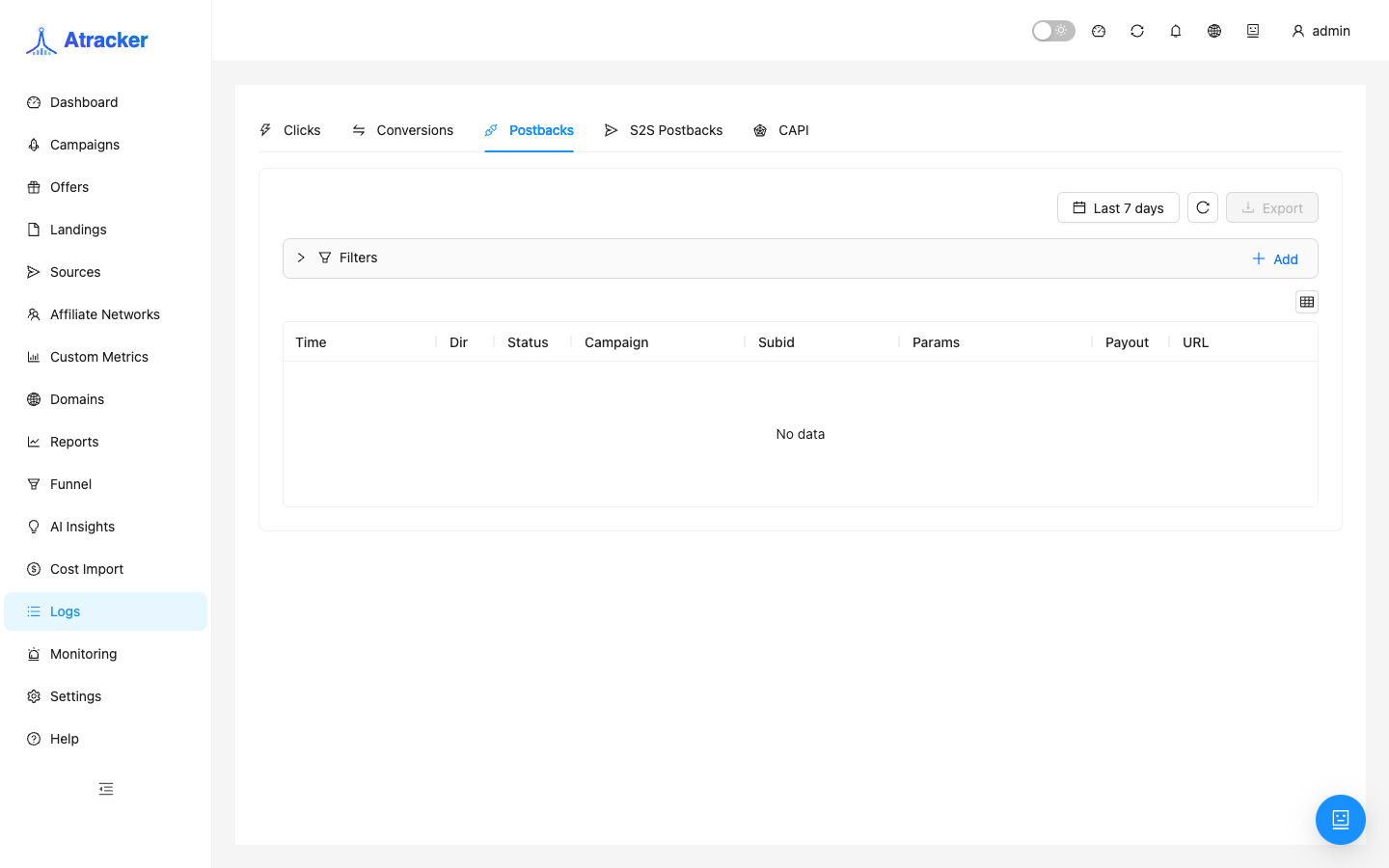
Postbacks, S2S, CAPI
Postbacks: Incoming from affiliate networks; Outgoing to traffic sources. Check URL, HTTP code, and body — 200 with a wrong status in the body still breaks tracker statuses. No Incoming when expected — network did not send or URL/token is wrong. Incoming without Conversions — status/goal mapping (Settings → Postback Mapping / Conversion Catalog).
S2S: outbound server-to-server; failed rows support Resend. Before Resend confirm the receiver did not already accept the first call. CAPI: Conversions API delivery — payload, platform response, error text. Do not confuse tabs with CPA Incoming postbacks.
Export and scenarios
- Export CSV uses current filters on the active tab — narrow first.
- New campaign: test click → Clicks → test postback → Conversions + Incoming Postbacks.
- Network dispute: Click ID + Incoming postback timestamp + status/payout.
- Fraud: Suspicious in Clicks → campaign Avg Fraud Score → Settings → Fraud Score / IP Lists.
- CAPI failing: CAPI tab → platform error text → campaign token/event config.
Troubleshooting
- Click exists, no conversion, Incoming empty — network/URL side.
- Incoming exists, no conversion — status/goal mapping or wrong clickid.
- Conversion exists, Reports empty — period, timezone, campaign filter.
- Deep link opened the wrong slice — clear extra tab filters.
Common mistakes
- Looking for yesterday click conversion under a different timezone.
- Checking only Reports without Postbacks when a sale vanished.
- Resending S2S without confirming the receiver already accepted the first call.
- Filtering the wrong campaign after a deep link.