Fraud and traffic quality
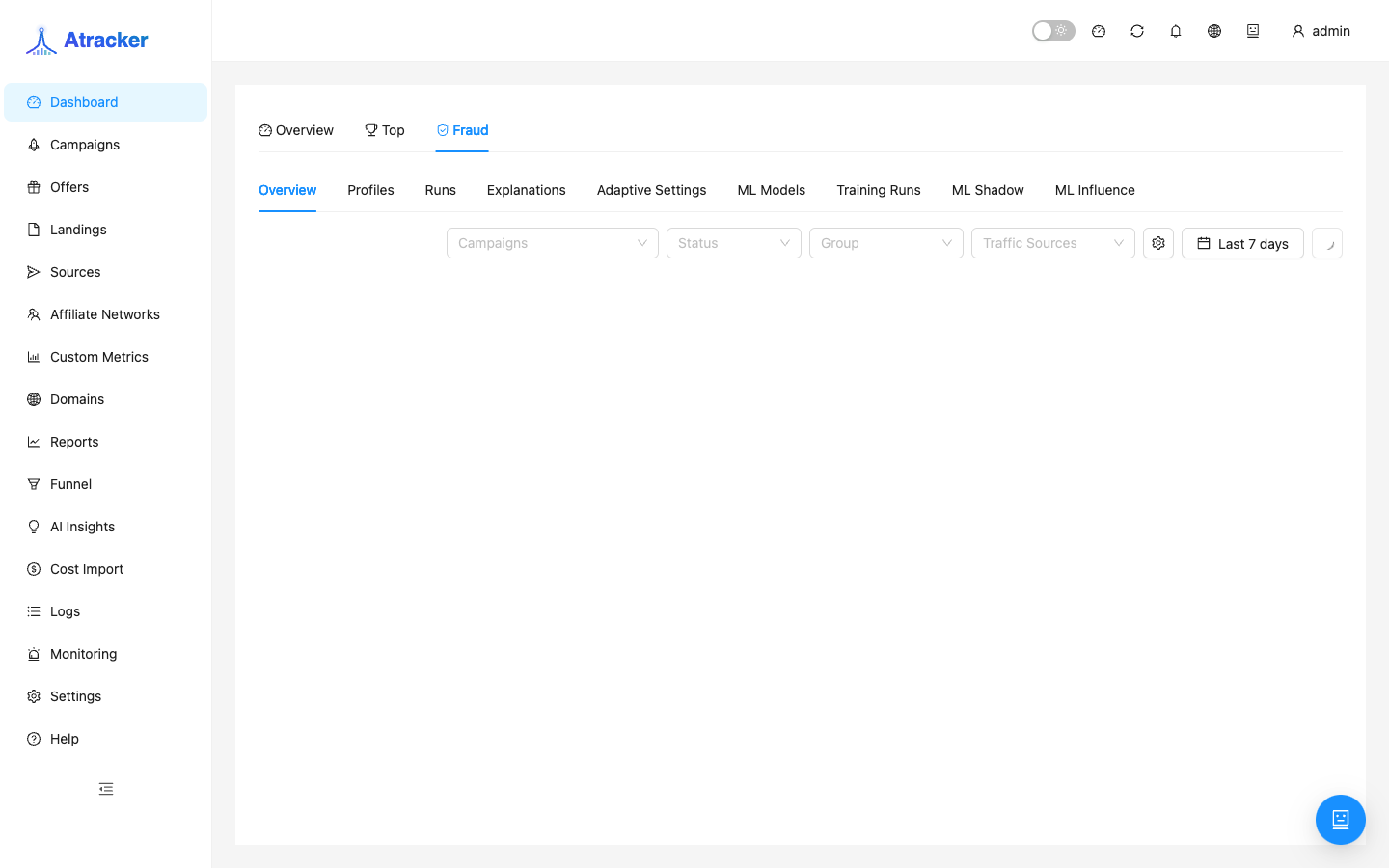
Traffic quality and fraud score. There is no separate sidebar page: /fraud redirects home. Metrics and settings are spread across Settings → Fraud Score, Settings → IP Lists, the Dashboard Fraud tab, and columns in Campaigns/Reports/Logs.
Purpose
ATracker scores clicks (bot UA, datacenter, VPN/proxy, rate, etc.). The threshold flags clicks as fraudulent in reports and logs. Blocking is via separate controls (datacenter block, auto-blacklist) and IP Lists — not per-rule block/redirect/flag actions.
Prerequisites
- Settings access (fraud-score and ip-lists) to change policy.
- Dashboard / Campaigns / Logs access to view metrics.
- Understanding that a high score is a signal; without auto-blacklist/IP Lists a click may only be flagged.
Where to open settings and metrics
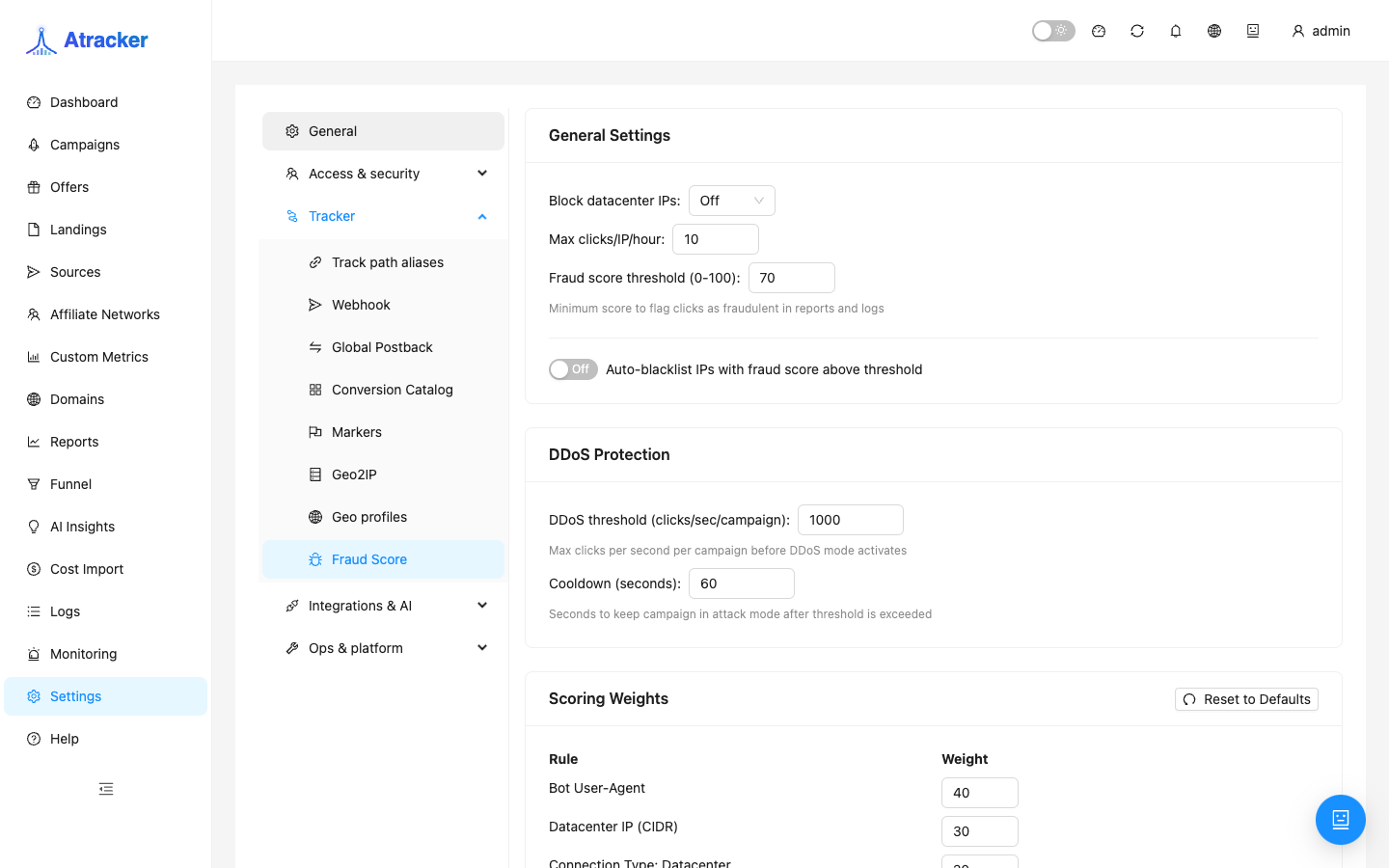
- Settings → Tracker → Fraud Score —
/settings?tab=fraud-score. - Settings → Access → IP Lists —
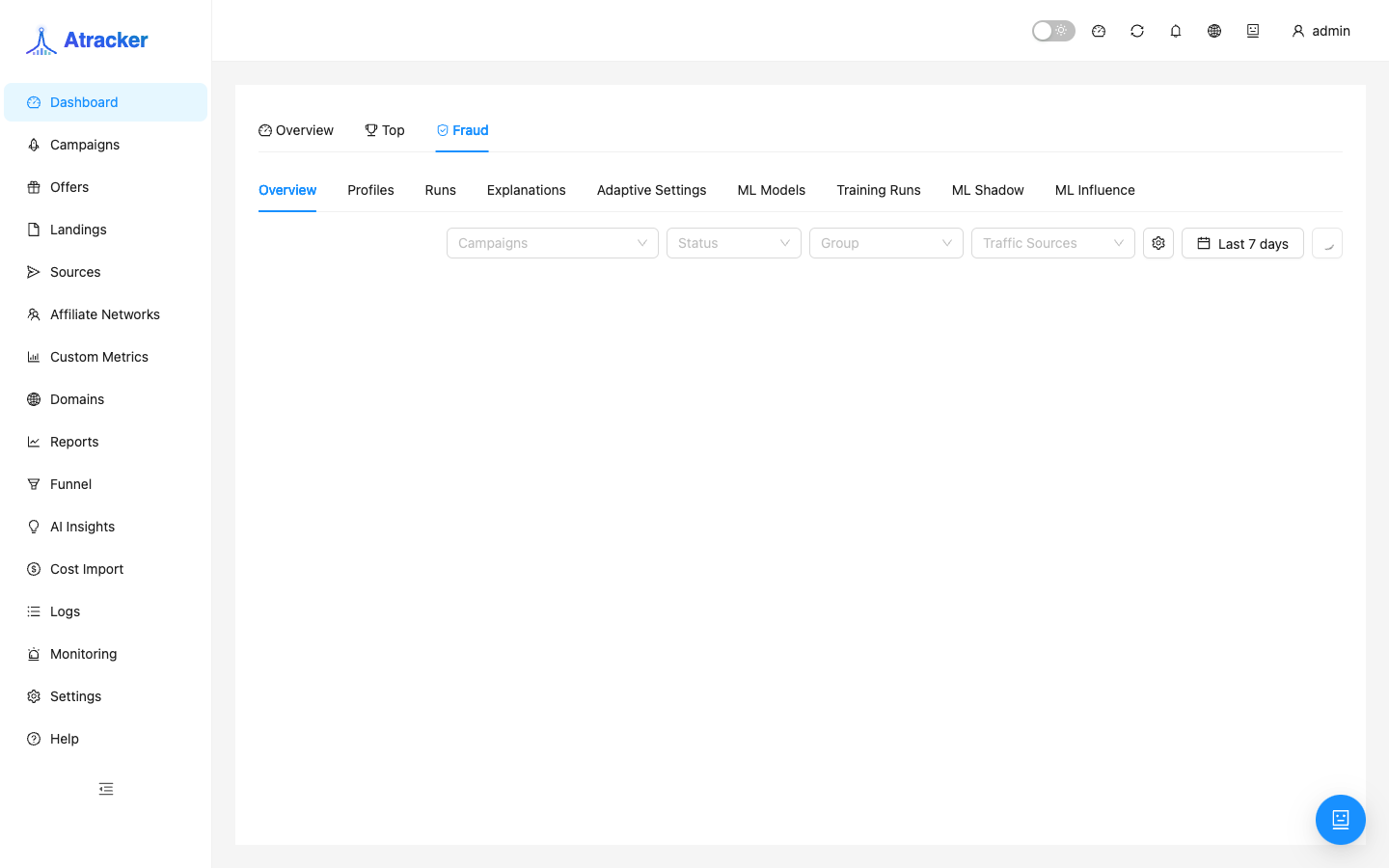
/settings?tab=ip-lists. - Dashboard → Fraud tab.
- Fraud Clicks / Fraud % / Avg Fraud Score in campaign lists and Reports; Logs → Clicks Suspicious filter.
Configure Fraud Score
- Open
/settings?tab=fraud-score. - Fraud score threshold (0–100) — clicks with score ≥ threshold are flagged fraudulent in reports and logs.
- Block datacenter IPs — On/Off hard block for datacenter IPs (separate from the threshold).
- Max clicks/IP/hour — contributes to score when per-IP rate is exceeded.
- Auto-blacklist — automatically blacklist IPs above the threshold.
- Weights — bot UA, datacenter CIDR / connection / flag, VPN, proxy, rate_limit_max and multiplier. Reset restores defaults. Raise only weights you confirmed in Logs on real clicks.
- DDoS Protection — clicks/sec per campaign threshold and cooldown seconds.
- Save. Verify new clicks in Logs (Suspicious) and Avg Fraud Score on the campaign / Reports.
The threshold mostly flags. To cut traffic you need Block datacenter, Auto-blacklist, and/or manual IP Lists. There are no per-rule block/redirect/flag actions in the UI.
IP Lists
Open /settings?tab=ip-lists. Blacklist rejects IP/CIDR. Whitelist skips fraud checks (office, test stands). Prefer narrow entries; a wide CIDR whitelist disables detection for a whole range. After auto-blacklist, review the list periodically for false positives on mobile NATs.
Where to read quality metrics
Dashboard → Fraud tab for account overview. Campaign lists and Reports columns Fraud Clicks / Fraud % / Avg Fraud Score help drop dirty bundles before optimizing a landing. Logs → Clicks Suspicious plus score detail explain why a click was flagged. Typical order: Dashboard Fraud → campaign with rising Fraud % → Logs Suspicious → tighten Settings if needed.
Typical scenarios
- Rising Fraud % on one campaign → Logs Suspicious → if datacenter confirmed, enable Block datacenter or auto-blacklist.
- Load test from office IP → temporary whitelist, then remove.
- clicks/sec spike → review DDoS threshold/cooldown; do not confuse with API ~300 req/min.
- High score with live conversions → do not raise the threshold blindly; tune weights/whitelist first.
Troubleshooting
- Clicks flagged but traffic continues — threshold without block/auto-blacklist/IP Lists only flags.
- Fraud % jumped after a source change — compare UA/ASN in Logs, not only the threshold.
- Office tests inflate Fraud % — temporary whitelist.
- Looking for Fraud in the sidebar — there is none; /fraud redirects home.
Tuning the threshold in practice
Start with observation: threshold + Fraud % columns in Reports without auto-blacklist. When Logs confirm datacenter/bot UA on a bad campaign, enable Block datacenter or a narrow blacklist CIDR. Auto-blacklist helps with steady bot floods but needs a weekly IP Lists review. Tune DDoS clicks/sec separately from the API ~300 req/min limit — it protects a campaign from click spikes, not the Public API.
Raise weights one signal at a time and verify on the next hour of traffic in Logs. Reset weights for a fast rollback if false positives rise on live conversions. Document office whitelists and remove them after the test.
Common mistakes
- Looking for Fraud in the sidebar — use Dashboard → Fraud and Settings.
- Expecting per-rule block/redirect/flag — the UI has threshold, weights, datacenter block, auto-blacklist, DDoS.
- Assuming the threshold alone blocks — without block/auto-blacklist/IP Lists it mostly flags.
- Whitelisting a wide CIDR just in case.